
Wireguard Client
Listing:
ip link add wg type wireguard
ip link set wg up
wg show
cd /etc/wireguard/
mv t480s2.conf wg.conf
apt-get install openresolv
wg-quick up wg
ip address
ping 10.8.0.2
wg show
history
Wireguard Tunnel all Internet traffic but have access to local printer
This AllowedIps: 0.0.0.0/0 setting routes all traffic thru Wireguard even LAN, which makes printing impossible.
How can I exclude printing from this, so I can print using my local wireless printer but still route all Internet traffic thru Wireguard VPN?
Windows client
Wireguard server is on VPS
2 Answers
On your Windows machine, edit the tunnel in the WireGuard client, and un-check the Block untunneled traffic (kill-switch) checkbox (at the bottom of the Edit tunnel dialog box). When checked, this setting effectively prevents Windows from using the other routes in its routing table.
If that alone doesn't fix it, you may also need to add a static route specifically for your printer. Try running route print in a command prompt on your Windows machine -- this will display your existing route table. If a route to your printer (or to the subnet your printer is on) is not listed, try adding one manually by running route add <printer ip address> <router ip address> in the command prompt -- for example, run route add 192.168.1.2 192.168.1.1 if 192.168.1.2 is your printer's address, and 192.168.1.1 is your local router's ip address.
If adding a static route fixes it, you can add the route permanently (ie persisting after restarts etc) by adding the -p flag (eg route -p add 192.168.1.2 192.168.1.2); or later delete the route by running route delete <printer ip address> (eg route delete 192.168.1.2).

In my experimentation, I'd recommend keeping AllowedIPs intact as 0.0.0.0/0. Instead, take advantage of the PostUp and PreDown steps in your wireguard config.
If you're downloading your killswitch configs from Mullvad, these steps are already included. All you need to do is add your local network to the iptables exclusion.
So the following config from Mullvad:
[Interface]
PrivateKey = ###################################
Address = ##.##.##.##/32,####:####:####:####::3:5d1f/128
DNS = ##.##.##.##
PostUp = iptables -I OUTPUT ! -o %i -m mark ! --mark $(wg show %i fwmark) -m addrtype ! --dst-type LOCAL -j REJECT && ip6tables -I OUTPUT ! -o %i -m mark ! --mark $(wg show %i fwmark) -m addrtype ! --dst-type LOCAL -j REJECT
PreDown = iptables -D OUTPUT ! -o %i -m mark ! --mark $(wg show %i fwmark) -m addrtype ! --dst-type LOCAL -j REJECT && ip6tables -D OUTPUT ! -o %i -m mark ! --mark $(wg show %i fwmark) -m addrtype ! --dst-type LOCAL -j REJECT

[Peer]
PublicKey = ###############################
AllowedIPs = 0.0.0.0/0,::0/0
Endpoint = ##.##.##.##:####
Turns into the following, where I've excluded my local network 10.0.0.1/24, and to improve readability, split the concatenated PostUp and PreDown steps into two steps each:
[Interface]
PrivateKey = ###################################
Address = ##.##.##.##/32,####:####:####:####::3:5d1f/128
DNS = ##.##.##.##
PostUp = iptables -I OUTPUT ! -o %i -m mark ! --mark $(wg show %i fwmark) -m addrtype ! --dst-type LOCAL ! -d 10.0.0.1/24 -j REJECT
PostUp = ip6tables -I OUTPUT ! -o %i -m mark ! --mark $(wg show %i fwmark) -m addrtype ! --dst-type LOCAL -j REJECT
PreDown = iptables -D OUTPUT ! -o %i -m mark ! --mark $(wg show %i fwmark) -m addrtype ! --dst-type LOCAL ! -d 10.0.0.1/24 -j REJECT
PreDown = ip6tables -D OUTPUT ! -o %i -m mark ! --mark $(wg show %i fwmark) -m addrtype ! --dst-type LOCAL -j REJECT

[Peer]
PublicKey = ###############################
AllowedIPs = 0.0.0.0/0,::0/0
Endpoint = ##.##.##.##:####
You can exclude additional ipv4 IPs by adding additional ! -d ##.##.##.##/## before the line's -j REJECT. The same can be done for ipv6 in the ip6tables commands.
Here's a quick python script I threw together to update all of my configs with my ipv4 exclusion. It'll preserve existing exclusions, split concatenated PostUp and PreDown commands, and save the original to .old. Sample usage: python3 excludeIpv4.py 10.0.0.1/24:
# excludeIpv4.py
import os
import sys

path = "/path/to/your/configs" # << change this
configFileEnding = '.conf'

os.chdir(path)

excludeIpv4 = sys.argv[1]

# will add ip exclusion to PostUp and PreDown steps
# will split concatenated PostUp and PreDown steps
# will preserve existing IP exclusions
def modifyFile(filePath):
    dnsIdx = -1
    newFileContents = []
    existingExclusion = "! --dst-type LOCAL"
    newExclusion = f"! --dst-type LOCAL ! -d {excludeIpv4}"
    renamedFileName = filePath + ".old"

    with open(filePath, 'r') as f:
        fileContents = f.read().split("\n")
        for line in fileContents:
            if line.startswith("#"):
                continue

            # modify PostUp
            if line.startswith("PostUp"):
                newLines = line.split(" && ")
                for newLine in newLines:
                    if not newLine.startswith("PostUp"):
                        newLine = "PostUp = " + newLine
                    if newLine.find("iptables") > -1:
                        newLine = newLine.replace(existingExclusion, newExclusion)
                    newFileContents.append(newLine)

            # modify PreDown
            elif line.startswith("PreDown"):
                newLines = line.split(" && ")
                for newLine in newLines:
                    if not newLine.startswith("PreDown"):
                        newLine = "PreDown = " + newLine
                    if newLine.find("iptables") > -1:
                        newLine = newLine.replace(existingExclusion, newExclusion)
                    newFileContents.append(newLine)

            else:
                newFileContents.append(line)

        # save original file to new file
        with open(renamedFileName, 'w') as f:
            f.write("\n".join(fileContents))


    # write new content to new file
    with open(filePath, 'w') as f:
        f.write("\n".join(newFileContents))

    return renamedFileName, filePath


print(f"Adding IPv4 exclusion of '{excludeIpv4}' to '{configFileEnding}' files in '{path}'...\n")
for file in os.listdir():
    if file.endswith(configFileEnding):
        filePath = os.path.join(path, file)
        print(f"Modifying {filePath}...")
        renamed, new = modifyFile(filePath)
        print(f"File updated. Saved original to {renamed}\n")
-----------------------------------------------------------------------------------------------------------------------------------
WireGuard Site to Site VPN – Zwei Netzwerke sicher verbinden
WireGuard ist der “neue” VPN Server von Heute! Nicht das er als Open Source sowieso schon bei mir gewonnen hat, sondern er ist auch ein Leichtgewicht. Der schlanke SourceCode bringt ihm zusätzlich Performance, sodass wir alles an Board haben was wir brauchen.
Zusammengefasst, WireGuard ist ein sehr einfacher, sehr sicherer und sehr schneller VPN Server für alle möglichen Plattformen und Betriebssystemen.
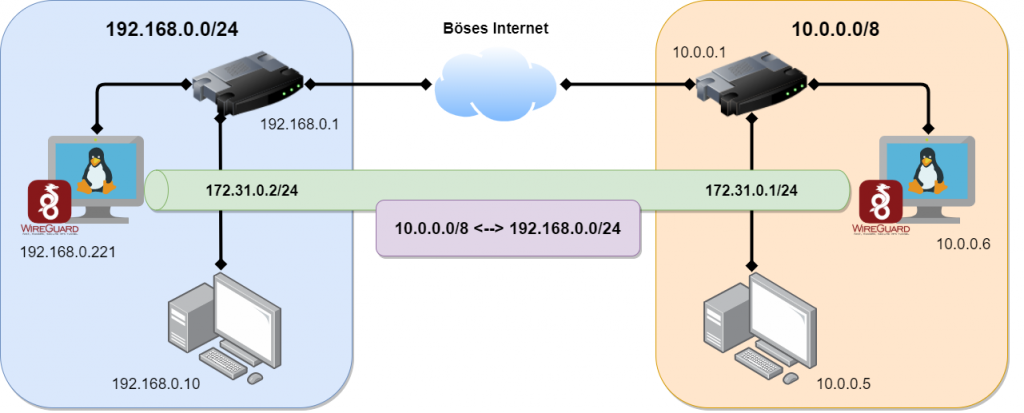
Im letzten Video habe ich euch gezeigt wie man eine Client to Site Verbindung herstellt und habe euch die Konfiguration dazu hier im Blog aufgeschlüsselt. (WireGuard Client VPN)
Jetzt zeige ich euch wie man eine Site-to-Site VPN Verbindung herstellt und dann die Netzwerke auf der gegenüberliegenden Seite erreicht.
Anleitung: WireGuard Site-to-Site VPN Server
Schritt 1: Auf dem SERVER1 und SERVER2 ausführen
sh -c "echo 'deb http://deb.debian.org/debian buster-backports main contrib non-free' > /etc/apt/sources.list.d/buster-backports.list"apt updateapt install linux-headers-$(uname --kernel-release)apt install wireguardnano /etc/sysctl.conf# <- entfernen bei der Zeile "net.ipv4.ip_forward=1" und speichernsysctl -p cd /etc/wireguard/umask 077; wg genkey | tee privatekey | wg pubkey > publickeycat privatekeycat publickeychmod 600 /etc/wireguard/privatekeySchritt 2: Nur auf SERVER1 ausführen
Konfigurationsdatei anlegen
nano /etc/wireguard/wg0.conf
[Interface]
PrivateKey = <Dein privater Schlüssel [privatekey SERVER 1]>
Address = 172.31.0.1/24
SaveConfig = true
PostUp = iptables -A FORWARD -i wg0 -j ACCEPT; iptables -t nat -A POSTROUTING -o eth0 -j MASQUERADE
PostDown = iptables -D FORWARD -i wg0 -j ACCEPT; iptables -t nat -D POSTROUTING -o eth0 -j MASQUERADE
ListenPort = 51820

[Peer]
 PublicKey = <Öffentlicher Schlüssel von [SERVER 2]>
 AllowedIPs = 192.168.0.0/24, 172.31.0.0/24
 PersistentKeepalive = 25
In den Zeilen PostUP & PostDown das Interface anpassen wie es zu eurem System passt. Hier steht jetzt eth0, das kann aber bei euch anders sein. Prüfen könnt Ihr das mit “ip a“
Schritt 3: Nur auf SERVER2 ausführen
Konfigurationsdatei anlegen
nano /etc/wireguard/wg0.conf
[Interface]
PrivateKey = <Dein privater Schlüssel [privatekey SERVER 2]>
Address = 172.31.0.2/24
SaveConfig = true
PostUp = iptables -A FORWARD -i wg0 -j ACCEPT; iptables -t nat -A POSTROUTING -o eth0 -j MASQUERADE
PostDown = iptables -D FORWARD -i wg0 -j ACCEPT; iptables -t nat -D POSTROUTING -o eth0 -j MASQUERADE

[Peer]
PublicKey = <Öffentlicher Schlüssel von [SERVER 1]>
Endpoint = <ServerIP oder Domain/FQDN>:51820
AllowedIPs = 10.0.0.0/8, 172.31.0.0/24
PersistentKeepalive = 25
Schritt 4: Auf SERVER1 und SERVER2 ausführen
wg-quick up wg0wg##Das zeigt dir den Status der Verbindung anDas wg-quick Kommando startet die Wireguard Verbindung mit der entsprechend hinterlegten Konfiguration, welche wir im vorherigen Schritt erstellt haben. Wenn eure Konfigurationsdatei anders heißen sollte, müsst Ihr den Befehl natürlich anpassen. wg0 ist hier nur als Beispiel genommen.
Schritt 5: Autostart (Server1 & Server2)
Wenn WireGuard automatisch mit dem System starten soll, dann folgenden Befehl absetzen.
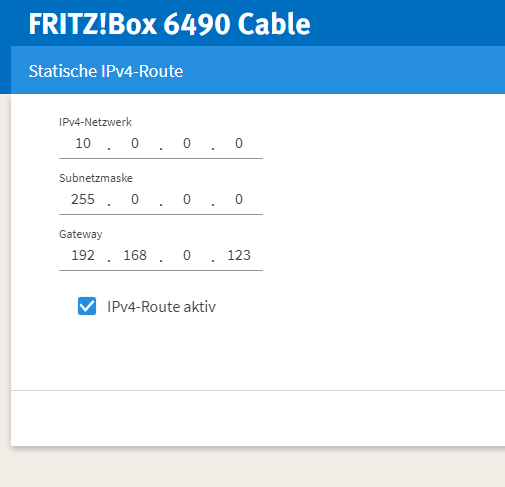
systemctl enable wg-quick@wg0Schritt 6: Routing
Ihr müsst natürlich auf beiden Seiten für das Routing sorgen. Hier ein Auszug aus dem Video wie das Routing in der Fritzbox aussehen könnte.
Block untunneled traffic (kill-switch)only appears if your (on client machine) peerAllowedIPs = 0.0.0.0/0